

 Follow
A lot of iPhone owners nowadays love to take selfies. Whether it is during travel, important events, parties or everyday happenings, selfies are now a very commonly used way of clicking your own pictures. After the unveiling of the forward-facing camera by Apple, it has become even easier to pose for selfies. Just like you would want a regular picture to be captured with the best possible light and color settings, people want the same for their selfies. The iPhones older than the iPhone 6S do not allow for changing flash settings in the forward facing or selfie camera. Users of these models generally use some iPhone apps to capture selfies in better settings. However, starting from iPhone 6S you can easily adjust the flash settings even for the forward-facing camera. Let’s look at the few quick steps to turn your selfie flash on and off as required –
Good lighting is the single biggest factor in how a selfie turns out. Natural daylight tends to produce the most flattering results, but people are not always taking selfies outdoors in the middle of the day. Evening outings, dimly lit restaurants, and late nights scrolling on the couch are all common selfie moments where the built-in flash becomes essential.
Phone usage at night tends to be scattered across dozens of small tasks. Social media, streaming video, looking up the weather, checking group chats, reading the news. A selfie request can come up at any point during that cycle and the screen flash ensures the front-facing camera still produces a clear image regardless of how dark the room is.
Knowing how to quickly toggle the selfie flash on and off will save you time and help you avoid washed-out or underexposed photos. Here are the steps to do it on your iPhone:
- Open your iPhone camera either by tapping on the camera app on the springboard or the camera icon in the control center.


- Once it is open, tap on the icon to change the camera to forward facing or the selfie camera.
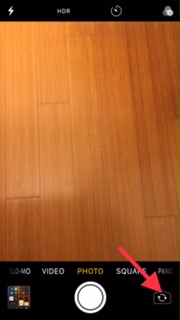
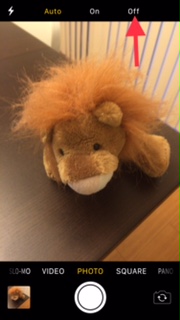
- The ‘lightning bolt’ sign on the top right is for the flash setting. Tap on that to see all the options.

- You can set it to ‘Auto’, ‘On’ or ‘Off’ depending on what you need, by tapping on that particular option.
View our iPad cases and iPhone cases.

Latest posts by The Campad Team (see all)
- Apple Launches iPhone 16e - February 21, 2025
- Create a Wireless Charging Surface at Home for Less Than $50 - July 9, 2024
- Meet The Telstra 5G Hotspot - May 22, 2024